CONVERSION FIELD NOTES · 18 OCTOBER 2026
Scanned PDF to Markdown: what OCR keeps and what you must rebuild
OCR can recover readable words from a scanned PDF without recovering its Markdown structure. In our one-page test, the text PDF produced headings and a three-column Markdown table. An image-only copy kept the table’s words and numbers, but flattened them into a paragraph.
Before importing a scan into your notes or an AI workspace, compare the output with the page. Start with headings, table relationships and reference codes. Try the browser-based converter with the files below.
One page, two kinds of PDF
We created this synthetic reading note for this demonstration. It contains no real participant data. The first PDF contains selectable text. The second embeds a PNG rendering of that page, with no text layer. The words, layout and page dimensions are the same; only their representation changes.
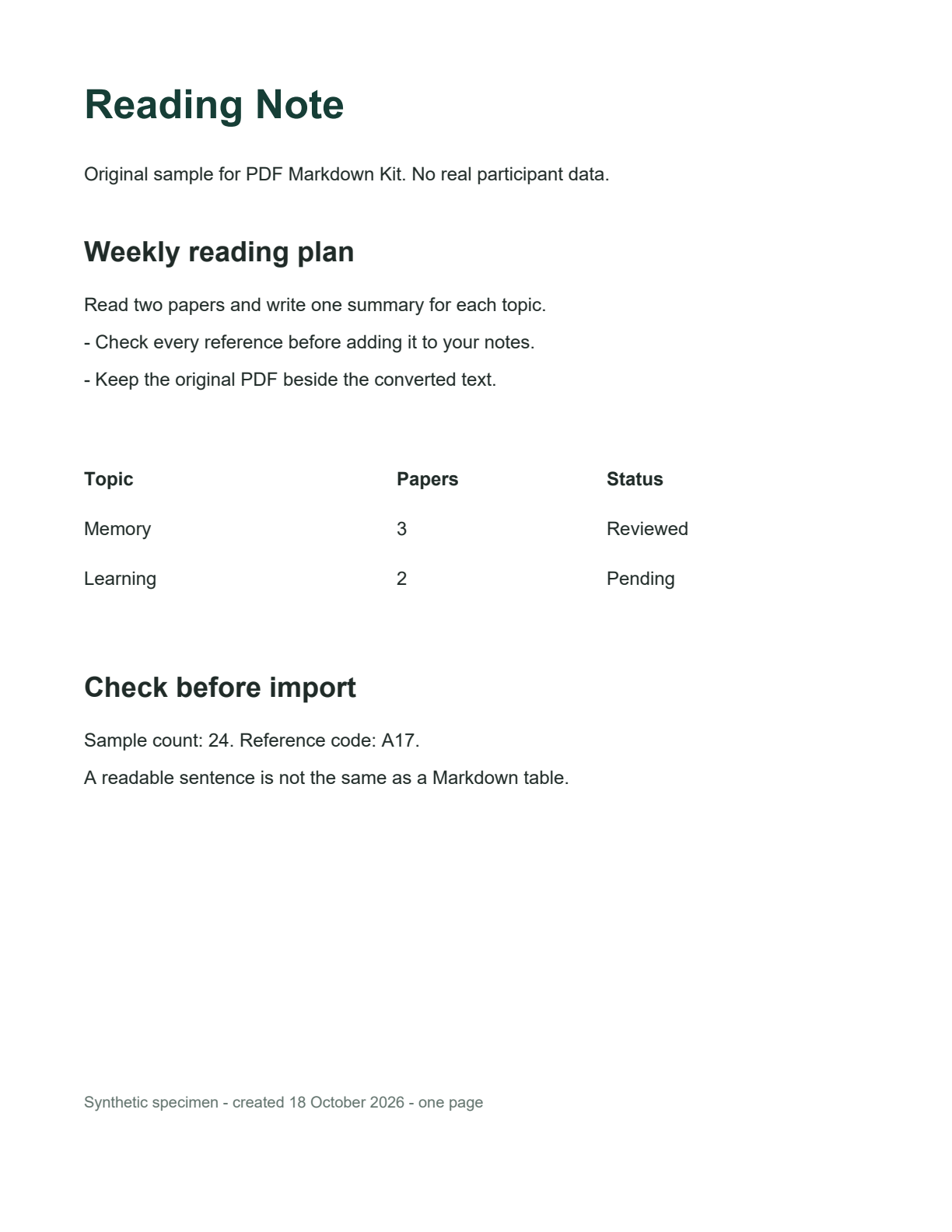
Method: converted both PDFs separately on pdfmarkdownkit.com in desktop Chrome on 18 October 2026, using Auto — use OCR when needed. The scan triggered the tool’s English OCR. Each file has one page. No output was manually corrected. The PNG is supplied as the source rendering; the two outputs below are from the PDFs.
The exact Markdown, side by side
These are raw Markdown characters, not a rendered preview. The downloadable files contain the same unedited output shown here.
Text PDF output
Text extraction; headings and regular table inferred.
Download raw text result# Reading Note
Original sample for PDF Markdown Kit. No real participant data.
## Weekly reading plan
Read two papers and write one summary for each topic.
- Check every reference before adding it to your notes.
- Keep the original PDF beside the converted text.
| Topic | Papers | Status |
| --- | --- | --- |
| Memory | 3 | Reviewed |
| Learning | 2 | Pending |
## Check before import
Sample count: 24. Reference code: A17.
A readable sentence is not the same as a Markdown table.
Synthetic specimen - created 18 October 2026 - one page
Image-only PDF output
English OCR; plain-text formatting.
Download raw OCR resultReading Note
Original sample for PDF Markdown Kit. No real participant data. Weekly reading plan
Read two papers and write one summary for each topic.
- Check every reference before adding it to your notes.
- Keep the original PDF beside the converted text.
Topic Papers Status Memory 3 Reviewed Learning 2 Pending Check before import
Sample count: 24. Reference code: A17.
A readable sentence is not the same as a Markdown table.
Synthetic specimen - created 18 October 2026 - one page
What survived, and what needs repair
| Check in this specimen | Text PDF | Image-only PDF |
|---|---|---|
| Title and section headings | # and ## markers appeared. | No heading markers. “Weekly reading plan” joined the preceding paragraph. |
| Two list items | Both retained leading hyphens. | Both retained leading hyphens. |
| Table relationships | Header, separator and two data rows became a Markdown table. | Headers and cells joined a paragraph, followed by “Check before import”. |
| Numeric references | 24 and A17 matched the source. | 24 and A17 matched the source. |
This is one clear, upright, English specimen, not an accuracy benchmark. It does not test handwriting, blurred scans, merged cells, formulas, multiple columns or other languages. Correct numbers here do not establish that numbers in your document will be correct.
Repair structure before importing into notes
- Restore heading boundaries. Put “Weekly reading plan” on its own line with
##. Give “Reading Note” a#, and separate “Check before import” from the table text before adding its heading marker. - Rebuild table rows from the source. Match Memory with 3 and Reviewed, and Learning with 2 and Pending. Adding pipe characters to a flattened paragraph without checking the page can associate a value with the wrong row.
- Verify references directly. Check sample count 24 and reference code A17 against the page. Repeat that check for names, dates and identifiers in your own file.
For this sample, the following is a manual reconstruction of the table, not OCR output:
| Topic | Papers | Status |
| --- | --- | --- |
| Memory | 3 | Reviewed |
| Learning | 2 | Pending |When possible, obtain the original text PDF. In this test it carried the font and position clues that helped the converter infer structure. A scan has pixels in place of those clues. Our current OCR path extracts text; it does not rebuild table layout.
Repeat the conversion yourself
- Download either PDF above and open PDF Markdown Kit.
- Choose the file and leave Text extraction on Auto.
- Select Convert to Markdown. The scan should finish with an “English OCR used” status.
- Compare the editable result with the source image, then copy or download the Markdown.
The current tool processes one file at a time in your browser, with English OCR. It accepts PDFs and PNG, JPG or WebP images up to 25 MB; PDFs are limited to 100 pages, with up to 20 OCR pages per conversion. Embedded image attachments and exact styling are not exported. Your document is not uploaded to a conversion server; see the privacy policy for site and affiliate-link details.